


T&C apply . Shipping discounts do not apply to Touch 'n Go Enhanced Cards
Get your first order for 10% off ! Promo code : NEWSHOP10
Enjoy RM5 discount during your birthday in October! Use Promo code : OCT26BPROMO
IMPORTANT NOTICE: Touch ‘n Go Shop Shipping Fees will be subject to 6% service tax (SST) effective from 2nd September 2026
Spend Minimum RM 60 Free 1 Touch 'n Go Limited Edition Rabbit Card!
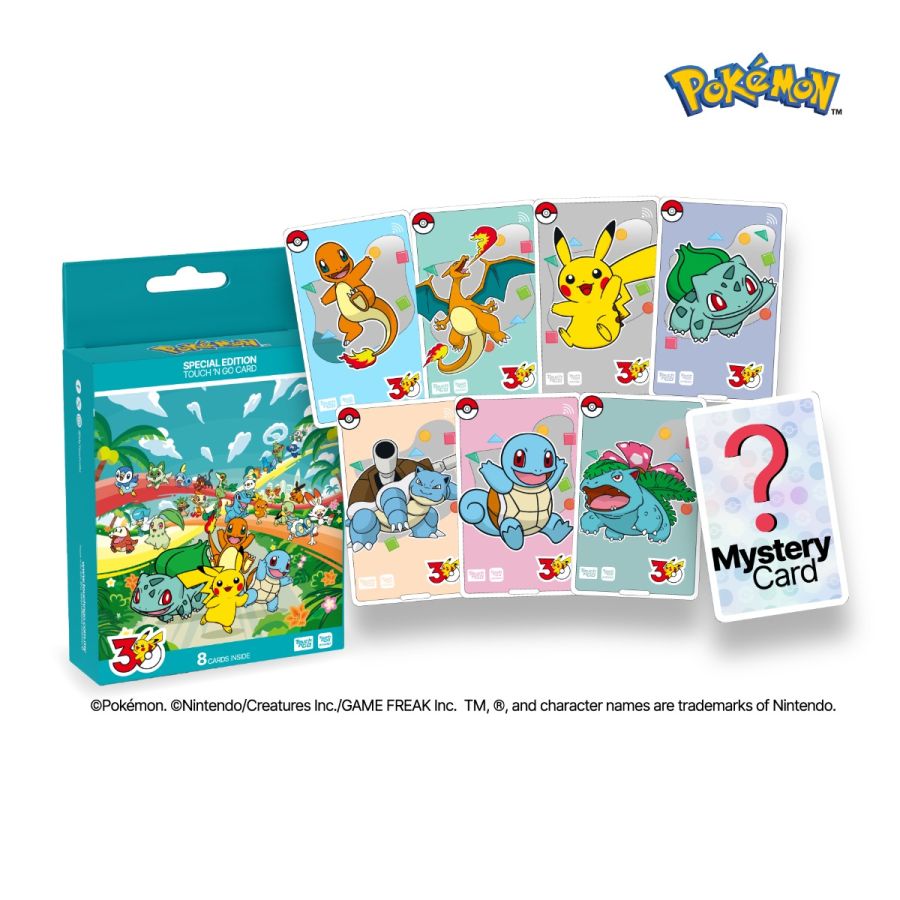
Touch 'n Go Pokémon 30th Anniversary Cards - Box Set
137 Units Sold


The "Touch 'n Go Pokémon 30th Anniversary Cards - Box Set” contains the complete card collection from the series:
With Touch 'n Go Pokémon 30th Anniversary Cards, you get to enjoy:
How to link your Touch 'n Go Pokémon 30th Anniversary Cards to Touch ‘n Go eWallet app?
Step 1: Launch your Touch ‘n Go eWallet app and tap on “Cards”.
Step 2: Select “TNG Card” and click on “+” symbol.
Step 3: Tap on the NFC symbol and scan your card at the back of your phone for at least 5 seconds.
Step 4: There you go!
How to reload your Touch 'n Go Pokémon 30th Anniversary Cards on Touch ‘n Go eWallet app?
Step 1: Launch your Touch ‘n Go eWallet app and tap on “Cards”.
Step 2: Select “TNG Card” and click on “Reload” button.
Step 3: Scan your card at the back of your phone for at least 5 seconds.
Step 4: Enter reload amount and scan the card again
Step 5: There you go!
Faulty Product Replacement
· Please contact Touch ‘n Go Careline team or submit your inquiry through the Touch ‘n Go e-Customer Service Form or visit Touch ‘n Go Service and Sales Centre at Bangsar South.
· Please ensure to capture images/videos of the product functionalities as proof.
· Please retain the original packaging, as it may be needed for further verification and note down the Order ID and Tracking Number.
· Touch ‘n Go retains the right to reject request for product replacement if product functionality is deemed not faulty.
· Please note that you will receive the same design as the faulty product.
** This product can be used for Travel Pass (i.e. My50) purchases via TNG eWallet
(https://www.touchngo.com.my/consumer/transit/travelpass/)
Enhanced Touch 'n Go Card T&C: https://www.touchngo.com.my/assets/pdf/TnC_TNG_EV2_Enhanced_Card.pdf.pdf
PDS: https://www.touchngo.com.my/assets/pdf/PDS_TNGGenericCard_.pdf
Klang Valley and Selangor: within 3 working days
Other addresses in Peninsular Malaysia : within 3 - 5 working days
The "Touch 'n Go Pokémon 30th Anniversary Cards - Box Set” contains the complete card collection from the series:
With Touch 'n Go Pokémon 30th Anniversary Cards, you get to enjoy:
How to link your Touch 'n Go Pokémon 30th Anniversary Cards to Touch ‘n Go eWallet app?
Step 1: Launch your Touch ‘n Go eWallet app and tap on “Cards”.
Step 2: Select “TNG Card” and click on “+” symbol.
Step 3: Tap on the NFC symbol and scan your card at the back of your phone for at least 5 seconds.
Step 4: There you go!
How to reload your Touch 'n Go Pokémon 30th Anniversary Cards on Touch ‘n Go eWallet app?
Step 1: Launch your Touch ‘n Go eWallet app and tap on “Cards”.
Step 2: Select “TNG Card” and click on “Reload” button.
Step 3: Scan your card at the back of your phone for at least 5 seconds.
Step 4: Enter reload amount and scan the card again
Step 5: There you go!
Faulty Product Replacement
· Please contact Touch ‘n Go Careline team or submit your inquiry through the Touch ‘n Go e-Customer Service Form or visit Touch ‘n Go Service and Sales Centre at Bangsar South.
· Please ensure to capture images/videos of the product functionalities as proof.
· Please retain the original packaging, as it may be needed for further verification and note down the Order ID and Tracking Number.
· Touch ‘n Go retains the right to reject request for product replacement if product functionality is deemed not faulty.
· Please note that you will receive the same design as the faulty product.
** This product can be used for Travel Pass (i.e. My50) purchases via TNG eWallet
(https://www.touchngo.com.my/consumer/transit/travelpass/)
Enhanced Touch 'n Go Card T&C: https://www.touchngo.com.my/assets/pdf/TnC_TNG_EV2_Enhanced_Card.pdf.pdf
PDS: https://www.touchngo.com.my/assets/pdf/PDS_TNGGenericCard_.pdf
Klang Valley and Selangor: within 3 working days
Other addresses in Peninsular Malaysia : within 3 - 5 working days
Write your review

Login and Registration Form